
OpenClaw Gateway Health Checks: Diagnose Channel Connectivity Without Guessing
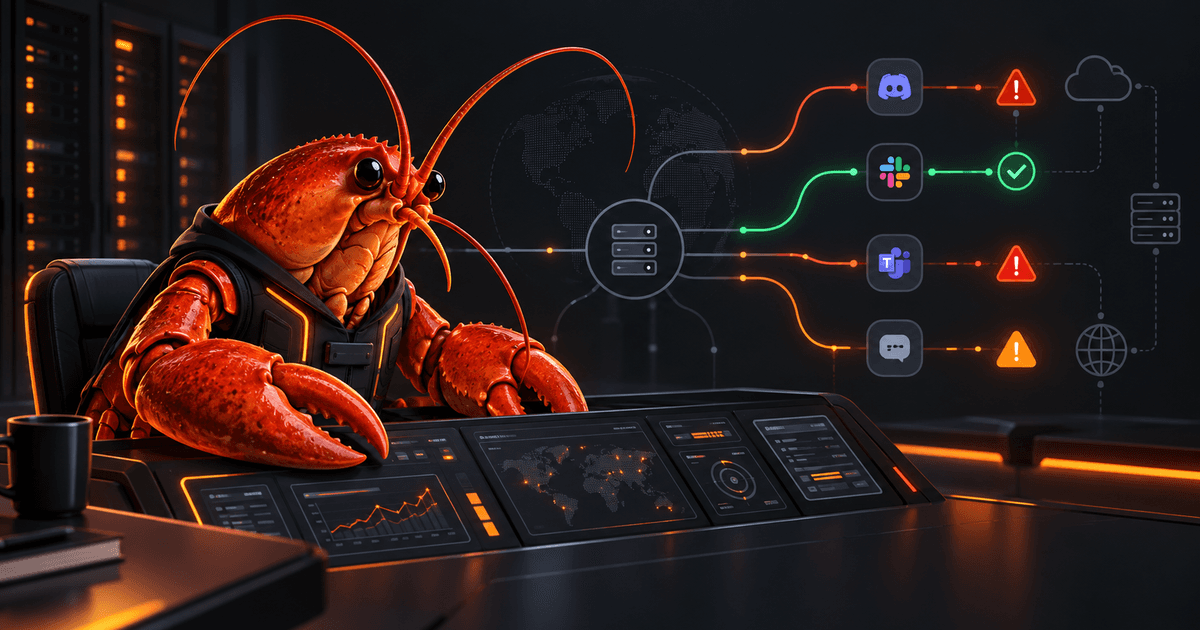
When an OpenClaw bot stops replying, “the Gateway is down” is only one possibility. The process may be running while a channel has lost authentication, the Gateway may be reachable while inbound admission is failing, or the channel may be healthy while you are looking at an old session row. Treating every symptom as the same outage leads to unnecessary restarts and risky configuration changes.
The safer approach is to test one layer at a time: local Gateway reachability, provider connectivity, inbound readiness, stored session activity, and finally model or tool behavior. This guide turns OpenClaw’s built-in health and status commands into a short troubleshooting runbook.
Quick answer: start with
openclaw status, then runopenclaw status --deepandopenclaw health. Useopenclaw health --jsonwhen you need machine-readable evidence. Do not infer live channel connectivity from stored session rows alone.
Why “healthy” can still mean “not receiving messages”
An OpenClaw deployment has several states that are easy to conflate:
- Gateway process: Is the control plane running and reachable by your operator client?
- Channel transport: Is the provider connection authenticated and connected?
- Inbound ingress: Can the channel admit incoming events into its durable queue?
- Sessions: Has OpenClaw stored conversation state for a recipient recently?
- Agent execution: Can the selected model, tools, and workspace complete a turn?
These states are related, but they are not interchangeable. The official health documentation specifically warns that session rows are not socket liveness. A provider can reconnect and show a healthy channel before a new session row is materialized. Conversely, a session row can remain in storage after the live transport has failed.
That distinction gives you a useful rule: use health and channel-status commands for live connectivity; use session listings to understand stored conversation activity.
The five-minute triage sequence
Run the following from the machine where your OpenClaw CLI is configured. If your installation uses a different profile or Gateway endpoint, confirm the target before interpreting the result.
openclaw status
openclaw status --deep
openclaw health
The first command is a quick local summary. The deep status check is useful when you need fuller diagnosis, including linked channel authentication and recent activity. The health command asks the running Gateway for a live health snapshot and can include provider probes when supported.
For scripts, monitoring, or an incident note, request structured output:
openclaw health --json
You can also query the Gateway health view directly:
openclaw gateway health
The exact output fields and flags can vary by release. If a command differs on your installation, use openclaw <command> --help rather than copying a flag from an unrelated version. Preserve the output in a private incident record, but redact identifiers or endpoint details before sharing it publicly.
If you can send a message through the channel, the standalone health chat command is another useful test. It is intended to return a status reply without invoking the agent, which helps separate channel command handling from model or tool failures.
Read the results by failure domain
1. Gateway reachability
If the CLI cannot contact the Gateway, stop there first. Check the process supervisor, the configured endpoint, and the local network path. A health check cannot tell you whether a channel is working if the operator client is querying the wrong Gateway or a stopped process.
Do not immediately edit ~/.openclaw/openclaw.json. OpenClaw uses that file by default, but installations can set OPENCLAW_CONFIG_PATH, and a different profile can point to a different state directory. Confirm which configuration and endpoint your command is using.
2. Channel transport and authentication
A connected Gateway does not guarantee that every provider is connected. Use deep status and health output to identify the affected channel or account. Look for authentication age, reconnect loops, provider errors, and account-specific failures rather than treating a single aggregate status as proof that all channels are fine.
If only one provider is failing, avoid restarting unrelated channels. Check the provider’s credentials, rate limits, account state, and current channel-specific documentation. If you recently changed network exposure, also verify that the Gateway is still listening on the intended interface and that the firewall or tailnet policy permits the path.
3. Inbound ingress readiness
A particularly confusing case is a channel that can send replies but cannot admit new inbound messages. OpenClaw’s health model treats channel connectivity and inbound admission as separate failure domains. A durable ingress queue may be unavailable even while the transport connection appears healthy.
In that case, readiness should report the account as failing, and health output should describe the latest ingress problem. The ordinary restart path may recover a transient queue-open failure, but repeated failures need investigation. Check the logged cause, such as a missing capability or plugin permission, instead of repeatedly restarting a channel that cannot initialize correctly.
A quiet channel should not be marked unhealthy merely because it has received no traffic. The health system does not use traffic staleness as a universal failure heuristic, so “no recent messages” is not enough evidence by itself.
4. Stored sessions
Use session listings to answer questions about saved conversation state, recent recipients, and message history. Do not use them as a substitute for a live provider probe. A session list is valuable context after the health check, not the first or only test.
This prevents a common troubleshooting loop: seeing an old session, assuming the provider is connected, and then debugging the model when the actual problem is transport or authentication.
5. Model, tools, and workspace behavior
If health and channel probes succeed but the agent does not answer normally, the problem may be downstream of connectivity. Check model-provider quota or usage, agent logs, tool permissions, workspace access, and any recent configuration edits. A channel can deliver a message successfully while the agent turn fails later.
Keep this phase separate from transport diagnosis. Changing a model or tool policy will not repair a broken WebSocket, and re-authenticating a channel will not fix a malformed tool configuration.
Build a safe evidence-gathering loop
For an intermittent failure, capture a small timeline rather than one screenshot of a status page:
openclaw status --deep
openclaw health --json
openclaw logs --help
Then inspect logs using the command supported by your installed release. The health documentation recommends filtering for channel, gateway, health-monitor, and ingress-related events. Record timestamps, the affected account, the first error, and whether the next restart changed the result.
Avoid copying raw logs into a public issue without review. OpenClaw’s diagnostic export is designed to sanitize sensitive material: message text, webhook bodies, tool outputs, credentials, cookies, and secret values are omitted or redacted. Even so, inspect the generated bundle yourself before sharing it, because deployment context and hostnames may still identify your environment.
A good incident note answers four questions:
- Could the operator reach the intended Gateway?
- Did the affected channel pass a live transport or account probe?
- Was inbound ingress ready?
- Did the agent fail only after the message was admitted?
Common symptoms and the least risky next step
“Every command says the Gateway is unavailable”
Verify the process, target endpoint, port, and active profile. If you use remote access, check the tunnel or private network path. Avoid opening the Gateway to the public internet as a quick test; keep the control plane private and use deliberate authentication. LobsterDome’s OpenClaw Remote Access Guide covers safer SSH and Tailscale patterns.
“One channel is broken, but the others work”
Treat it as an account or provider problem first. Run deep status and a live health probe, then inspect recent channel logs. Reconnect or re-authenticate only the affected account, following current provider instructions.
“The channel is connected, but inbound messages never arrive”
Check ingress readiness and the first queue or capability error in the logs. A transport connection is not proof that the durable inbound path is available. If you changed plugins or permissions, compare the effective configuration with the documented schema.
“A config edit made the Gateway refuse to start”
OpenClaw validates configuration strictly. Unknown keys, malformed types, and invalid values can prevent startup. Use the installed CLI’s diagnostics, inspect openclaw config schema, and consider openclaw doctor for diagnosis. The automatic repair command is openclaw doctor --fix, but read the proposed changes before applying them and keep a backup of important configuration.
“Health is green, but the agent still fails”
Move downstream: inspect model usage, agent logs, workspace permissions, tool policy, and sandbox behavior. If you recently tightened security controls, check whether the requested tool is now unavailable. The OpenClaw Sandboxing Guide explains why tool policy, sandboxing, and elevated access are separate decisions.
Use doctor deliberately
openclaw doctor is a diagnostic and repair path, not a generic restart button. Run the read-only diagnosis first when possible. If the output identifies a configuration or state problem, review the proposed repair and use openclaw doctor --fix only when you understand what will change.
OpenClaw keeps a trusted last-known-good copy after a successful startup, but startup and hot reload do not restore it automatically. Do not assume that editing the file back by hand or restarting will undo a bad change. After any repair, rerun the health sequence and confirm both channel status and inbound behavior with a harmless test message.
If configuration or network changes affect exposure, follow up with openclaw security audit. A working health check is not a security review. LobsterDome’s OpenClaw Security Audit Guide provides a separate pre-exposure checklist.
FAQ
What is the fastest OpenClaw health check?
Run openclaw status, openclaw status --deep, and openclaw health. Use openclaw health --json when you need output for monitoring or an incident record.
Does openclaw sessions prove that a channel is online?
No. Session rows represent stored conversation state. Use channel status and live health commands for provider connectivity.
Why can a channel send but not receive?
Transport connectivity and inbound ingress are separate. Check readiness and logs for a durable queue or capability failure instead of assuming the connection is fully healthy.
Should I publish a health endpoint?
Treat unauthenticated probes and Gateway exposure as deliberate security decisions. Prefer a private, authenticated path and review the current OpenClaw security guidance before exposing anything beyond the host or trusted network.
Comments
Loading comments…