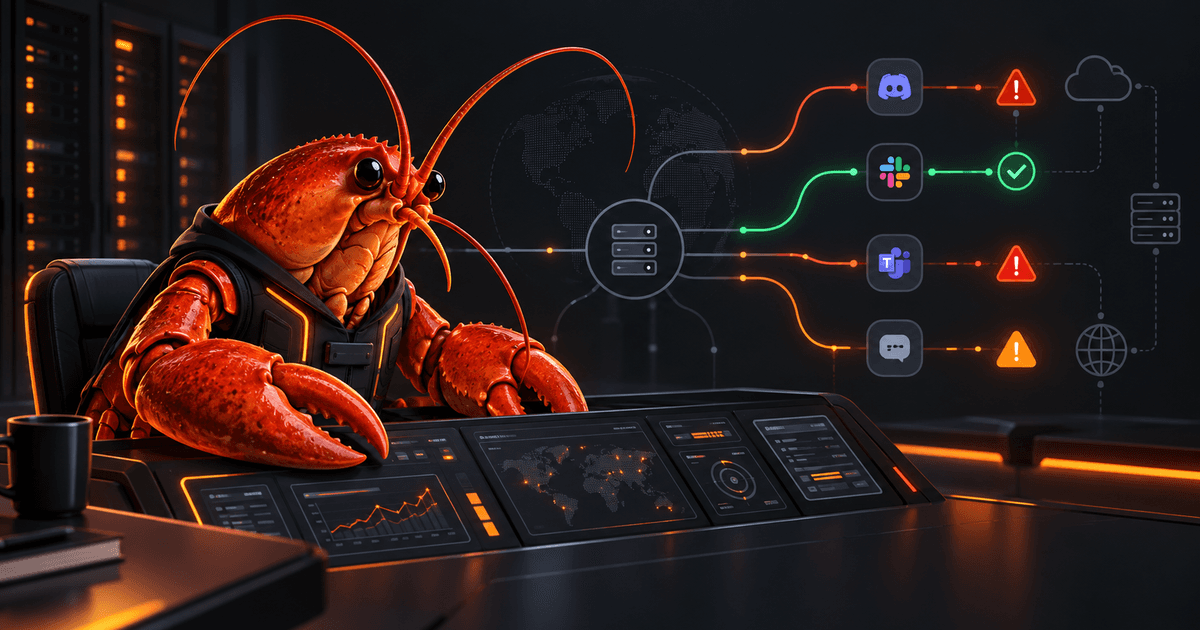
OpenClaw Channel Troubleshooting Guide: Diagnose Silent Bots and Delivery Failures
When an OpenClaw bot stops replying, reconnecting the channel is rarely the best first move. A channel can be connected to its provider while messages are still blocked by pairing, group mention rules, an allowlist, missing permissions, or a routing mistake. The fastest fix is to identify which layer is failing before changing configuration.
Quick answer: Start with
openclaw status,openclaw gateway status,openclaw logs --follow,openclaw doctor, andopenclaw channels status --probe. If transport is healthy, inspect pairing, DM policy, group allowlists, mention requirements, and provider permissions. Change one thing, send one controlled test message, and verify the result in status and logs.
This guide focuses on channels that are configured but silent or unreliable. For broader host and gateway checks, see the OpenClaw Gateway Health Checks guide. For a new connection, start with the OpenClaw getting started guide.
Separate the failure layers before changing settings
A useful troubleshooting report answers four questions: did the provider deliver an inbound event, did OpenClaw accept or filter it, did the agent run, and did the channel accept the outbound response? These questions map to different evidence. Provider or webhook errors point to transport. A pairing or mention message points to policy. A model or queue error points to runtime or routing. A send error points to destination permissions or provider limits.
Write down the channel, account, sender, destination, and timestamp for one test. That small record prevents a common mistake: comparing a successful probe for one account with a failed message sent to another. It also makes logs easier to search without copying private message content into a support ticket.
Why “connected” does not mean “messages flow”
OpenClaw channel delivery has several layers:
- Gateway process: Is the OpenClaw runtime running and reachable?
- Transport: Can the channel connect to its provider and maintain a session?
- Identity: Is the account, device, or QR-linked session valid?
- Policy: Is this sender, DM, group, or room allowed to reach the agent?
- Routing: Is the message addressed to the expected account and agent?
- Permissions: Can the bot read, respond, or send in the destination?
A green connection status usually describes the transport layer. It does not prove that a particular sender is approved, that a group message meets its mention rule, or that a bot has permission to post in a channel. Treat “connected but silent” as a routing or policy investigation until the evidence says otherwise.
Run the command ladder first
Run the checks in order from the machine hosting the Gateway:
openclaw status
openclaw gateway status
openclaw logs --follow
openclaw doctor
openclaw channels status --probe
Use the logs command in a second terminal if possible. Send one test message while watching the stream, then stop following the logs after you have captured the relevant event.
A healthy baseline normally includes a running runtime, a successful connectivity probe, and a channel result that reports a usable capability such as read-only or write-capable. The exact output varies by channel and account. Do not treat a process that starts cleanly as proof that a message was accepted or delivered.
If openclaw doctor reports a configuration or service issue, fix that before investigating a provider. If a channel probe fails, stay at the transport and identity layers. If the probe succeeds but the test message never produces a response, move to pairing, policy, routing, and permissions.
Diagnose a channel that is connected but silent
Direct messages receive no reply
Check whether the channel uses pairing or an allowlist for direct messages:
openclaw pairing list --channel <channel>
openclaw config get channels
A pending pairing request means the sender has reached the channel but has not been approved. Approve the exact request only after confirming the sender identity:
openclaw pairing approve --channel <channel> <code>
Pairing allows a sender to talk to the agent; it is not a blanket grant of administrative access. Keep owner and operator permissions separate from ordinary DM access, especially on channels shared with other people.
If there is no pending request, inspect the configured DM policy and account selection. A message sent to one account may be reaching a different OpenClaw account or agent than the one you are watching. Use explicit channel and account options when the installation has multiple accounts.
Group messages are ignored
Groups commonly require an explicit mention. Look for a log event that indicates the message was dropped because a mention was required. If that is the configured behavior, mention the bot in the test message rather than loosening the policy immediately.
Also inspect the group or guild allowlist. In integrations that use a channel map, unlisted channels can be denied even when the bot is online. A wildcard entry may be appropriate for a controlled test environment, but broadening production access is a security decision. Prefer adding the exact room or channel needed and then retest.
The bot is online but cannot send
A channel may allow the bot to read events while denying replies. Check the provider-side permissions, scopes, role membership, and destination access. Common log signatures include missing_scope, not_in_channel, Forbidden, 401, and 403.
Do not paste a new token into random config fields to solve a permissions error. Confirm which account is active, identify the provider's missing permission, update the provider configuration through its documented flow, and restart or reload only when required. Then run the channel probe and send a controlled message.
Messages worked before an update
Run the status and repair checks documented for the current version:
openclaw status --all
openclaw doctor --fix
openclaw gateway restart
openclaw status --all
Use --fix only when you have reviewed what the diagnostic proposes to repair. After an update, a channel can remain configured while its plugin dependency tree or runtime links are broken. If status reports a plugin load failure or corrupted dependency tree, repair that issue before editing channel policy.
QR login or session setup times out
A login timeout can be network-related rather than a bad account. Inspect the Gateway logs and check proxy, DNS, IPv6, and firewall behavior from the Gateway host. If the channel uses an HTTP proxy, verify that the process actually inherits the proxy environment. A shell where curl works is not necessarily the same environment as a systemd or launchd service.
Avoid repeated relinking while the underlying network path is failing. Repeated login attempts can create confusing stale sessions. Fix reachability, perform one fresh login, and confirm the resulting account with openclaw channels status --probe.
Use logs as a decision tree, not a transcript dump
When a test message is sent, classify the evidence:
- No inbound event: investigate provider connection, account identity, webhook or polling setup, and network reachability.
- Inbound event followed by a policy drop: investigate pairing, DM policy, group allowlists, or mention requirements.
- Inbound event accepted but no model run: investigate routing, agent selection, queue state, or runtime errors.
- Model run completes but no outbound message: investigate provider permissions, destination membership, rate limits, and send errors.
- Outbound attempt returns an authorization error: repair scopes, roles, or the configured credential source.
This classification prevents random changes. Keep the original error text and timestamp when asking for help; “it is connected” is much less useful than a probe result plus the log line for one controlled message.
A safe recovery loop
Use this loop for each suspected cause:
- Capture the current status and relevant configuration without exposing secrets.
- Form one hypothesis, such as “the sender is awaiting DM approval.”
- Make the smallest change that tests that hypothesis.
- Send one known test message from one known account.
- Watch logs and rerun the channel probe.
- Keep the change only if the evidence confirms it; otherwise restore the intended policy manually and test the next layer.
Never publish API keys, bot tokens, OAuth refresh tokens, QR payloads, or full private transcripts in a bug report. Redact identifiers that are not needed to reproduce the failure. If a credential may have appeared in logs, rotate it through the provider before continuing. The OpenClaw Security Audit guide covers a broader review of exposed access and risky configuration.
FAQ
Why does OpenClaw show a channel as connected but ignore my DM?
The transport is probably healthy, but the sender may be waiting for pairing approval or blocked by the DM policy. Check openclaw pairing list --channel <channel>, then inspect the account and policy configuration.
Why does a group bot respond only when mentioned?
The group likely has mention gating enabled. Mention requirements are a useful protection against unsolicited responses. Keep the rule unless the group is controlled and you have a reason to change it.
Should I restart the Gateway first?
Restart only when status, logs, or a documented repair step points to a stale process or broken plugin state. A restart will not approve a sender, add a missing permission, or change a group allowlist.
What is the most useful information for a support request?
Include OpenClaw’s version, the relevant status and probe output, the channel/account involved, the timestamp of one test message, and the redacted log event that explains whether the message was received, filtered, processed, or rejected.
Comments
Loading comments…