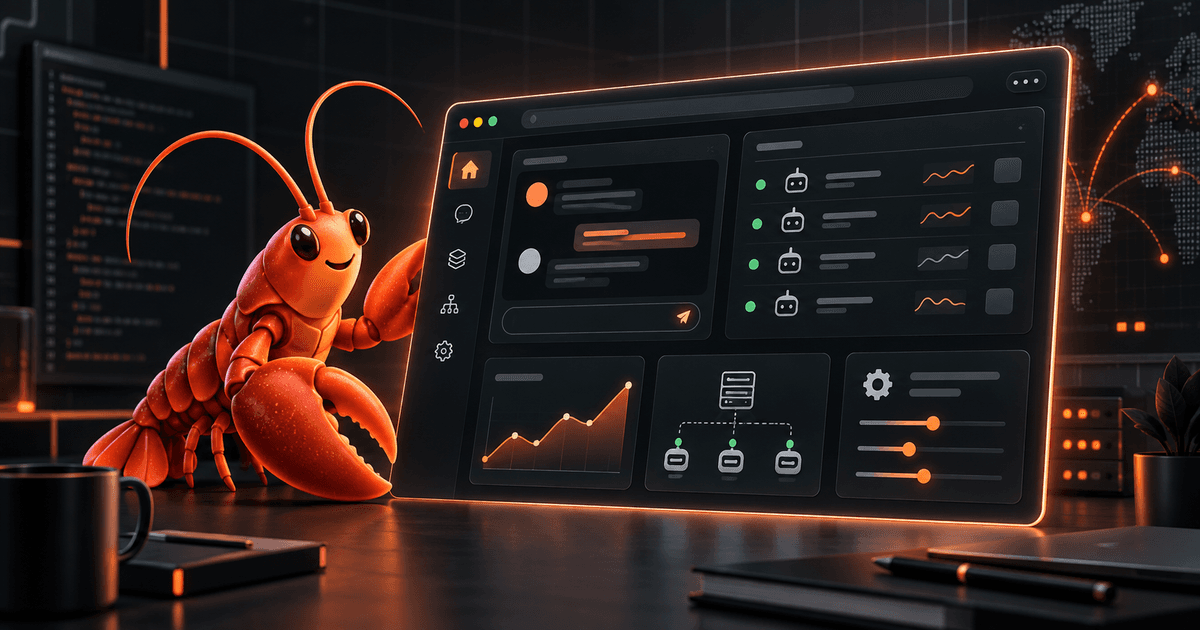
OpenClaw Control UI Guide: Monitor Agents From the Browser
A browser dashboard is useful only when it makes an agent easier to understand, not when it hides the system behind another layer of mystery. OpenClaw’s Control UI gives you a web surface for chat, sessions, configuration, and Gateway operations. The browser is the client; the Gateway remains the component that owns the connection to channels, tools, models, and agent state.
That distinction makes setup and troubleshooting much simpler. If the page is open but the Gateway is unhealthy, refreshing the browser will not repair the underlying service. If the Gateway is healthy but the browser cannot connect, investigate the URL, pairing, authentication, or network path separately. Treat the dashboard as an operator console with the same care you would give any privileged administration surface.
Quick answer: Start with a running OpenClaw Gateway, open its documented Control UI URL, and connect or pair the browser using the official flow. Use the session sidebar to select work, Chat to interact with the selected session, and Settings or the operational panels for inspection. If the UI goes offline, check Gateway health and the browser’s connection path before changing configuration.
What the Control UI is—and is not
The Control UI is a browser-facing interface for an OpenClaw Gateway. It brings several related tasks into one place: opening an agent home, inspecting sessions, chatting, reviewing settings, and using operational panels. The official documentation separates these surfaces because each answers a different question about your installation.
The UI does not replace the Gateway process. It does not turn a browser tab into an independent agent runtime, and it does not remove the need to understand the host, account, configuration, and access policy behind the Gateway. A useful mental model is:
- Browser: renders the Control UI and sends operator actions.
- Gateway: authenticates the client, coordinates agent work, and connects to configured services.
- Session: provides the conversational and operational context that you select or create.
Keep those layers separate when diagnosing a problem. A page-loading issue belongs to the browser or network path. A failed health check belongs to the Gateway or one of its dependencies. A response that looks wrong may belong to the selected session, model, or agent configuration.
Before connecting, confirm which host runs the Gateway, which OS user owns it, and whether you intend to expose the UI only locally or across a trusted network. The OpenClaw configuration guide explains why targeted edits are safer than replacing the whole configuration file.
Connect to the dashboard safely
Use this staged connection checklist instead of opening a broad network path first.
1. Confirm the Gateway independently
Check the Gateway’s service status and logs from the host. Run the project’s documented health and status commands for your installation, and make sure the process you inspect is the process serving the Control UI. The OpenClaw Gateway health-check guide covers a layered check for service, channel, and client connectivity.
Do not interpret a browser error as proof that the Gateway is down. Conversely, do not interpret a page that renders as proof that agent work, channels, or tools are healthy.
2. Use the documented URL
Open the Control UI URL described in the official Control UI URLs reference. Avoid inventing a port, path, or proxy rule from an old installation. If you use a reverse proxy or tunnel, verify that it forwards the intended host and preserves the authentication and WebSocket behavior required by your version.
For a local-only dashboard, keep it local. For remote access, prefer an authenticated private network or a deliberately configured tunnel over exposing an administration page to the public internet. Record the access path so you can recognize it later in logs and browser history.
3. Complete pairing or authentication
Follow the official connect and pair instructions for the installed release. Pairing is an access decision, not merely a first-run button. Confirm that you are pairing the intended browser and Gateway, and do not paste tokens or private connection details into screenshots, issue reports, or shared chat.
If pairing fails, keep the diagnosis narrow: compare the URL, host reachability, Gateway logs, and browser session. Repeatedly generating credentials without checking which Gateway is answering can make a correct installation look inconsistent.
Learn the main dashboard surfaces
The Control UI documentation maps the interface into focused areas. Names and layout can change as the project evolves, but the purpose of each surface is stable enough to guide an operator.
Sessions and sidebar
The sessions and sidebar guide is the starting point for moving between pieces of work. Before sending a message, verify the selected session and agent context. A surprising answer may be a correct response in the wrong session.
Use session navigation to establish context, not to infer that every visible conversation has the same permissions or tools. If you are operating a shared Gateway, document which sessions are personal, automated, or team-owned.
Chat
The Chat documentation covers the conversation surface. Use it for low-risk checks first: ask for status, inspect a harmless capability, or confirm which agent and model are selected. Do not begin with a destructive command merely because the chat box is available.
When testing tools, make the expected side effect explicit. A browser dashboard can make an action feel reversible even when the underlying tool changes files, sends a message, or modifies a service.
Settings and panels
Settings and operational panels are for inspection and controlled administration. Read the Settings reference alongside your installed configuration schema. Do not assume a visible control has the same scope as a hand-edited configuration field, and do not make several changes at once when you are trying to isolate a fault.
After a change, record what changed, validate the configuration, and check Gateway health. For configuration repairs, use OpenClaw Doctor rather than guessing at a recovery sequence.
Agent home and quick open
The Control UI also documents an agent home and quick-open behavior for moving through the interface. Use these navigation aids to reduce tab sprawl, but keep the canonical URL and active Gateway visible in your operating notes. Convenience navigation should not obscure which environment you are controlling.
Troubleshoot offline and reconnect states
When the dashboard reports that it is offline, use a layered loop:
- Browser: check the URL, network connection, certificate warning, blocked WebSocket, and stale tab.
- Path: check the reverse proxy, tunnel, VPN, or local binding between browser and Gateway.
- Gateway: inspect service status, logs, health, and authentication failures.
- Session: after reconnecting, confirm the selected session and whether a request was actually delivered.
The official offline and reconnect guide is the source of truth for reconnect behavior in your release. Avoid clicking Send repeatedly while the UI is reconnecting; you may create duplicate work once the connection returns. After recovery, check the session transcript or activity state before retrying an action.
If the Gateway itself changed recently, run a read-only diagnostic first. The Doctor guide explains the difference between lint, interactive repair, and mutating repair modes. A clean browser reconnect does not prove that every channel or tool is healthy, so finish with a targeted low-risk test.
Security checklist for browser access
A Control UI should be treated as a privileged interface.
- Keep the dashboard on a local or private network unless public exposure is an intentional, reviewed design.
- Use the authentication and pairing flow documented for your version; never share credentials in screenshots or public logs.
- Verify the host and Gateway before pairing a new browser.
- Use separate browser profiles for different environments when practical.
- Keep tool allowlists, sandboxing, and channel access controls unchanged while troubleshooting connectivity.
- Review reverse-proxy and tunnel access logs after enabling remote access.
- Confirm the selected session before sending a command or approving an action.
- Run a security audit after changing binding, authentication, plugins, tools, or remote exposure; see the OpenClaw security setup guide.
The official Control UI security model should take precedence over assumptions based on another dashboard product. Browser convenience is not a separate trust boundary from the Gateway.
FAQ
Does the Control UI run the Gateway?
No. The browser renders the interface and communicates with the Gateway. The Gateway remains responsible for agent work and its configured integrations.
Why can I open the page but not use chat?
Page delivery and an authenticated, live Gateway connection are separate checks. Verify the documented URL, pairing or authentication state, network path, Gateway health, and selected session.
Should I expose the Control UI to the internet?
Not by default. Keep it local or behind a private, authenticated network unless you have reviewed the access path, proxy, authentication, and logging requirements for your environment.
Why did my message appear in the wrong context?
The active session or agent selection may not be the one you intended. Check the sidebar before sending, then inspect the session state after reconnects or navigation.
What should I do after changing settings in the UI?
Record the change, validate configuration, check Gateway health, and run a low-risk end-to-end test. If the change affects exposure or permissions, run a security audit.
Sources
- OpenClaw Control UI
- OpenClaw Control UI: Connect and pair
- OpenClaw Control UI: Sessions and sidebar
- OpenClaw Control UI: Chat
- OpenClaw Control UI: Settings
- OpenClaw Control UI: Offline and reconnect
- OpenClaw Control UI: Security model
- OpenClaw Control UI URLs
- OpenClaw Gateway Health Checks on LobsterDome
- OpenClaw Doctor Guide on LobsterDome
Comments
Loading comments…