OpenClaw Browser Monitoring: Page Change Alerts Done Right
Key Takeaways
- OpenClaw browser monitoring is four steps, always: fetch the page, reduce it to a small comparable value, compare against last time, alert only on a real difference.
- Pick your comparison strategy deliberately — plain text extract, structured extract with
--schema, full-page screenshot, or raw network response body. They fail in different ways. - Use automations (cron) for monitors that need their own schedule and run history. Use heartbeat for soft checks that can ride along with the main session.
- The hard part is not detection. It is noise: rotating banners, A/B tests, and session junk will page you at 3am unless you scope the selector and set a threshold.
- Store the last-seen value in a file. A monitor with no memory is just a very expensive page load.
If you keep a browser tab open "just to check on it," OpenClaw can take over. Its browser fetches the page, the scheduler supplies the clock, and channels deliver the result. This guide adds the missing piece: deciding what counts as a meaningful change.
What OpenClaw Browser Monitoring Actually Is
OpenClaw browser monitoring is a scheduled agent job that opens a page in OpenClaw's managed browser profile, extracts a specific value or snapshot, compares it to the previously stored result, and messages you through a chat channel only when the difference matters.
That is worth separating from two things it is often confused with:
- It is not uptime monitoring. Uptime tools ping an endpoint and check a status code. OpenClaw renders the page, which means it sees content that only exists after JavaScript runs.
- It is not a scraper run. A scrape is a one-shot pull. A monitor is a scrape plus memory plus a decision rule.
Unlike a basic DOM diff, the agent can answer a focused question such as "is this product in stock, and at what price?" and return a typed value you can compare.
If you have not set up the browser tool yet, start with our OpenClaw browser automation guide and come back. Everything below assumes openclaw browser status returns a healthy profile.
The Four Parts of Every Monitoring Loop
Every monitor you build, regardless of what it watches, has the same shape.
- Fetch — open the URL in the browser profile and wait for the content you care about to exist.
- Reduce — turn a 400KB page into one small comparable thing: a price, a headline, a count, an image.
- Compare — check the reduced value against what you stored last run.
- Alert — deliver only when the comparison crosses your threshold.
Most broken monitors fail at step 2. People compare the whole page, which changes constantly, and then wonder why the alerts are worthless. Reduce aggressively. The smaller the value you compare, the quieter the monitor.
Choosing a Monitoring Strategy
OpenClaw's browser tool gives you four practical ways to reduce a page. They are not interchangeable.
| Strategy | Command | Best for | Fails when |
|---|---|---|---|
| Text extract | openclaw browser extract "question" --selector | Prices, headlines, stock status | The wording changes but the meaning doesn't |
| Structured extract | extract --schema '<json schema>' | Anything you want to compare numerically | The page genuinely has no such field |
| Screenshot diff | screenshot --full-page or --ref | Visual/layout changes, canvas-rendered dashboards | Rotating ads, carousels, timestamps |
| Network response | responsebody "<pattern>" --max-chars 5000 | Pages backed by a clean JSON API | The API is auth-gated or obfuscated |
Structured extract is the default you want. Passing a JSON Schema to --schema gives you a typed object instead of a sentence, which means your comparison can be newPrice < oldPrice * 0.95 rather than string equality. Per the docs, if the model's response fails schema validation it gets one retry before falling back to free text — so keep the schema small and obvious.
Reach for screenshot diffing only when the thing you care about is genuinely visual. It is the noisiest option by a wide margin.
Build It: A Price-Drop Monitor, Step by Step
Here is a complete, working monitor. Adapt the URL and the question; the structure stays identical.
Step 1: Verify the browser before you automate anything
openclaw browser status
openclaw browser doctor --deep
If doctor --deep complains about Playwright, install it. Several capabilities — navigate, act, AI snapshot, element screenshots, and PDF — require Playwright and return a clear 501 without it.
Step 2: Give the monitor its own browser profile
Do not run monitors in the same profile you use for interactive work. Cookies, logged-in sessions, and half-finished tabs will corrupt your results.
openclaw browser create-profile --name watcher --color amber
openclaw browser --browser-profile watcher start --headless
Headless is right for monitors: no window stealing focus at 6am.
Step 3: Write the check as a script
Save this as ~/watchers/price-check.sh and make it executable with chmod +x ~/watchers/price-check.sh — the scheduler invokes the file directly, so without the execute bit every run dies with a permission error.
The script reduces, compares, and — crucially — prints to stdout only when it wants to alert you. Everything else goes to a log file.
#!/usr/bin/env bash
set -euo pipefail

URL="https://example-shop.test/product/widget-pro"
STATE="$HOME/watchers/state/widget-pro.json"
LOG="$HOME/watchers/state/widget-pro.log"
mkdir -p "$(dirname "$STATE")"

SCHEMA='{"type":"object","properties":{
  "price":{"type":"number"},
  "currency":{"type":"string"},
  "inStock":{"type":"boolean"}},
  "required":["price","inStock"]}'

openclaw browser --browser-profile watcher open "$URL" --label watcher >/dev/null
openclaw browser --browser-profile watcher wait --text "Add to cart" --timeout-ms 15000 || true

NOW=$(openclaw browser --browser-profile watcher extract \
  "What is the current price and stock status of this product?" \
  --selector "main .product-summary" \
  --ignore-selector ".promo-banner, .recently-viewed" \
  --schema "$SCHEMA" --json)

# Guard: schema fallback or layout drift can return valid JSON with null fields.
# Never overwrite a good baseline with a bad read.
if ! echo "$NOW" | jq -e '(.price | type) == "number" and (.inStock | type) == "boolean"' >/dev/null 2>&1; then
  echo "$(date -Is) BAD_READ $NOW" >> "$LOG"
  exit 0
fi

NEW_PRICE=$(echo "$NOW" | jq -r '.price')
IN_STOCK=$(echo "$NOW" | jq -r '.inStock')
PREV_PRICE=$(jq -r '.price // empty' "$STATE" 2>/dev/null || echo "")

echo "$NOW" > "$STATE"

if [ -z "$PREV_PRICE" ]; then
  echo "$(date -Is) BASELINE $NEW_PRICE (in stock: $IN_STOCK)" >> "$LOG"
  exit 0
fi

DROP=$(echo "$PREV_PRICE $NEW_PRICE" | awk '{printf "%.4f", ($1-$2)/$1}')
if [ "$IN_STOCK" = "true" ] && [ "$(echo "$DROP > 0.05" | bc -l)" = "1" ]; then
  # stdout is the alert channel — this is the only thing that reaches Telegram
  echo "widget-pro dropped from $PREV_PRICE to $NEW_PRICE"
else
  echo "$(date -Is) NO_CHANGE $NEW_PRICE" >> "$LOG"
fi
Four safeguards matter: --selector scopes the product block, --ignore-selector removes noisy page elements, the jq -e guard rejects bad reads, and the 5% threshold ignores trivial price movement.
Step 4: Schedule it
openclaw automations create "0 */4 * * *" \
  --name "widget-pro price watch" \
  --command "$HOME/watchers/price-check.sh" \
  --tz "Europe/London" \
  --session isolated \
  --timeout-seconds 180 \
  --announce --channel telegram --to "-1001234567890"
Every four hours, isolated session, three-minute budget, result announced to Telegram. Jobs persist in ~/.openclaw/cron/jobs.json, so this survives a Gateway restart.
--announce delivers stdout on every run, so print only actionable alerts and send routine status to the log. Recurring top-of-hour schedules are staggered by up to five minutes by default, preventing multiple monitors from hitting sites simultaneously.
Step 5: Verify before you trust it
openclaw automations run <jobId> --wait
openclaw automations runs --id <jobId> --limit 10
Run it manually twice, then read ~/watchers/state/widget-pro.log. The first run should write BASELINE, the second NO_CHANGE. If you see BAD_READ instead, your selector or schema is wrong — fix that before adding more monitors.
Cron vs Heartbeat for Monitoring
Both can drive a check. They are not the same tool.
| Automations (cron) | Heartbeat | |
|---|---|---|
| Schedule | Independent per job | One shared cadence (default 30m) |
| Session | Detached (--session isolated) | Main session, keeps context |
| Run history | Yes, via automations runs | No detached task records |
| Enable/disable | Per job | Global for the agent |
| Best for | Anything you'd call a monitor | Soft "anything I should know?" checks |
Use automations for real monitors. You want the run history when a monitor silently stops working, and you want to disable one watcher without disabling all of them.
Heartbeat is useful for low-stakes batching, such as checking inbox, calendar, and project status in one contextual turn. Configure every, activeHours, and target under agents.defaults.heartbeat; activeHours provides a clean quiet-hours boundary.
For a worked example of the batched approach, see our OpenClaw daily briefing setup, and OpenClaw cron jobs guide for the scheduler in depth.
Killing False Positives
This is where monitors live or die. Five techniques, in the order you should apply them:
- Scope the selector.
--selectorfirst,--ignore-selectorsecond. Ninety percent of noise dies here. - Compare meaning, not text. A schema-typed number is stable; a sentence is not.
"£49.99"and"49.99 GBP"are the same price and two different strings. - Set a threshold. Never alert on any change. Alert on a change big enough to act on — 5% on price, any transition on stock status, a new entry on a job board.
- Confirm twice. For flaky pages, require two consecutive runs to agree before alerting. Store a
pendingSincefield in your state file and only fire once the change persists. - Respect quiet hours. A price drop at 3am is still a price drop at 8am. Use heartbeat
activeHours, or gate the alert inside your script.
One more, easy to forget: alert on silence too. If a monitor hasn't produced a successful run in 24 hours, that is itself worth knowing. A monitor that fails quietly is worse than no monitor, because you have stopped checking manually.
Real Monitoring Recipes
- Restock alerts — schema-extract
inStock, alert on anyfalse → truetransition. Check every 15 minutes for hyped drops, hourly otherwise. - Competitor pricing — extract a price table with
--schema, store the whole object, diff per SKU. Weekly is usually enough; daily if you're actively repricing. - Job boards — extract the list of role titles, alert on titles not in the stored set. This is a set difference, not an equality check.
- Vendor status pages — screenshot diff works well here because status pages are visually simple and deliberately stable.
- Regulatory or docs pages — extract with
--selectoron the main article body and alert on any change at all. These pages are supposed to be static, so the threshold can be zero. - Dashboards behind a login — use
import-profile --browser chrome --system Default --into watcher --domains dashboard.example.comto bring across only the cookies you need, and read our OpenClaw security setup before you do.
Failure Modes and How to Recover
Login walls. The session expired. Re-import the profile or log in once interactively in the watcher profile, then return to headless.
Bot detection. Slow down first — most sites block frequency, not identity. openclaw browser set headers and a realistic viewport help. If a site clearly does not want to be polled, take the hint.
Layout drift. Your --selector no longer matches, so extraction returns nothing and the monitor either alerts constantly or goes silent. The jq -e type guard in the script above is the defence: if the extracted value is not the type you expect, log a BAD_READ and exit instead of writing state. Never overwrite a good baseline with a failed read.
Stale tabs. Long-running monitors accumulate tabs. Close the labelled tab at the end of each run, or reset-profile on a weekly schedule.
Evaluate and prompt injection. openclaw browser evaluate runs JavaScript in page context, and a hostile page can attempt to steer the agent. If your monitors target untrusted sites, set browser.evaluateEnabled=false and stick to extract and snapshot.
FAQ
How often should OpenClaw check a page?
Match the cadence to how fast the thing actually changes. Status pages: every 5–15 minutes. Prices: hourly to every four hours. Job boards and docs: daily. Checking a page every minute is almost never useful and is the fastest way to get blocked.
Can OpenClaw monitor pages that need a login?
Yes. Create a dedicated profile and either log in once interactively, or use import-profile with --domains to bring across cookies for just that site. Do not point monitors at your everyday browser profile.
What is the difference between a screenshot diff and a text extract?
A screenshot diff catches anything visual, including changes you didn't anticipate — and also every rotating banner. A text extract catches only what you asked for, which makes it far quieter. Start with extract; add screenshots when the change is genuinely visual.
Do I need Playwright for monitoring?
For the useful parts, yes. Navigate, AI snapshots, element screenshots, and PDF export all require Playwright and return a 501 without it. Run openclaw browser doctor --deep to confirm before building.
Where does OpenClaw store the previous value?
Nowhere, by default — that is your job. Write the reduced value to a JSON file in your own state directory, as in the script above. Automations store run history in ~/.openclaw/cron/jobs.json, not your application state.
Can one job monitor several pages?
Yes, and for related pages it is usually better. One script that loops over five product URLs and sends one summary message beats five jobs sending five messages. Split them only when the schedules genuinely differ.
How This Fits the Rest of OpenClaw
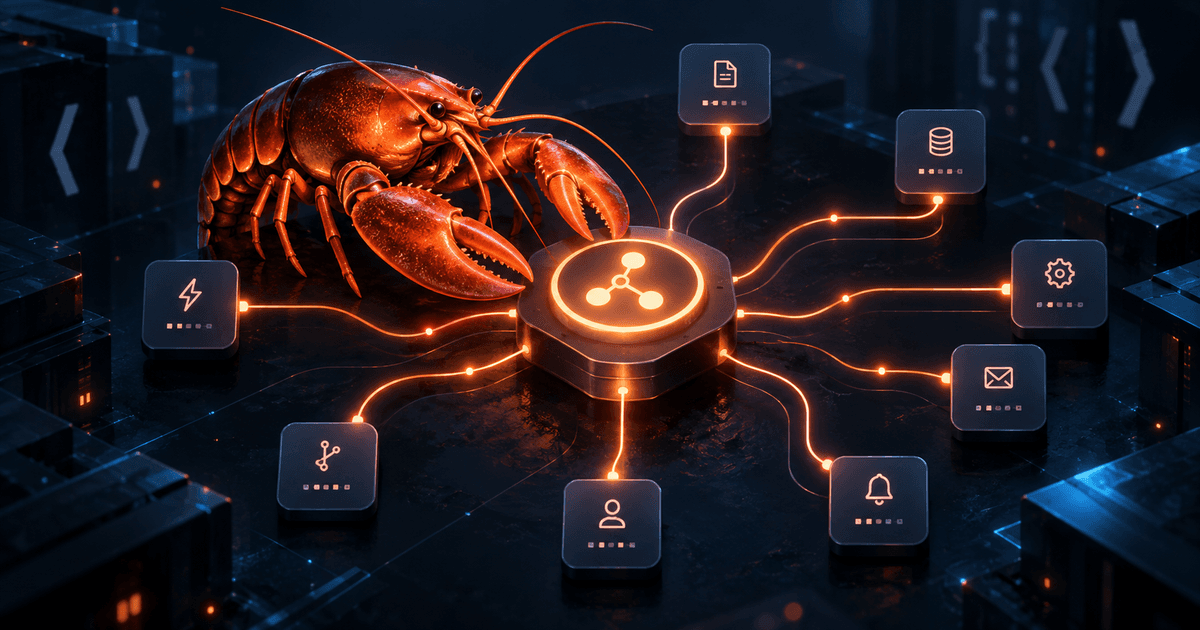
Monitoring is the point where OpenClaw's parts stop being features and start being a system:
- Browser tool does the fetching and reduction
- Automations own the schedule and the run history
- Channels deliver the alert where you'll actually see it
- Task Flow coordinates the follow-up when an alert needs multi-step action — see our OpenClaw task flow guide
- Custom skills package a monitor pattern so the next one takes two minutes
Sources
The commands and behavior described in this guide are based on OpenClaw's official documentation:
- Browser CLI reference
- Browser control documentation
- Cron jobs and automations
- Heartbeat configuration
Conclusion
OpenClaw browser monitoring is not hard to start and is easy to do badly. The tooling — extract, schema, screenshots, cron, channels — is all documented and all works. The difference between a monitor you trust and one you mute in a week is entirely in the reduction and the threshold.
So build one. Pick the single page you check most often by hand, scope a selector to the one thing you actually care about, give it a threshold, and schedule it every four hours. Run it twice manually before you trust it.
The best monitor is the one that stays silent for a month and then tells you exactly the thing you needed to know.

Comments
Loading comments…