OpenClaw Raspberry Pi Setup: Build a $50 AI Server Guide
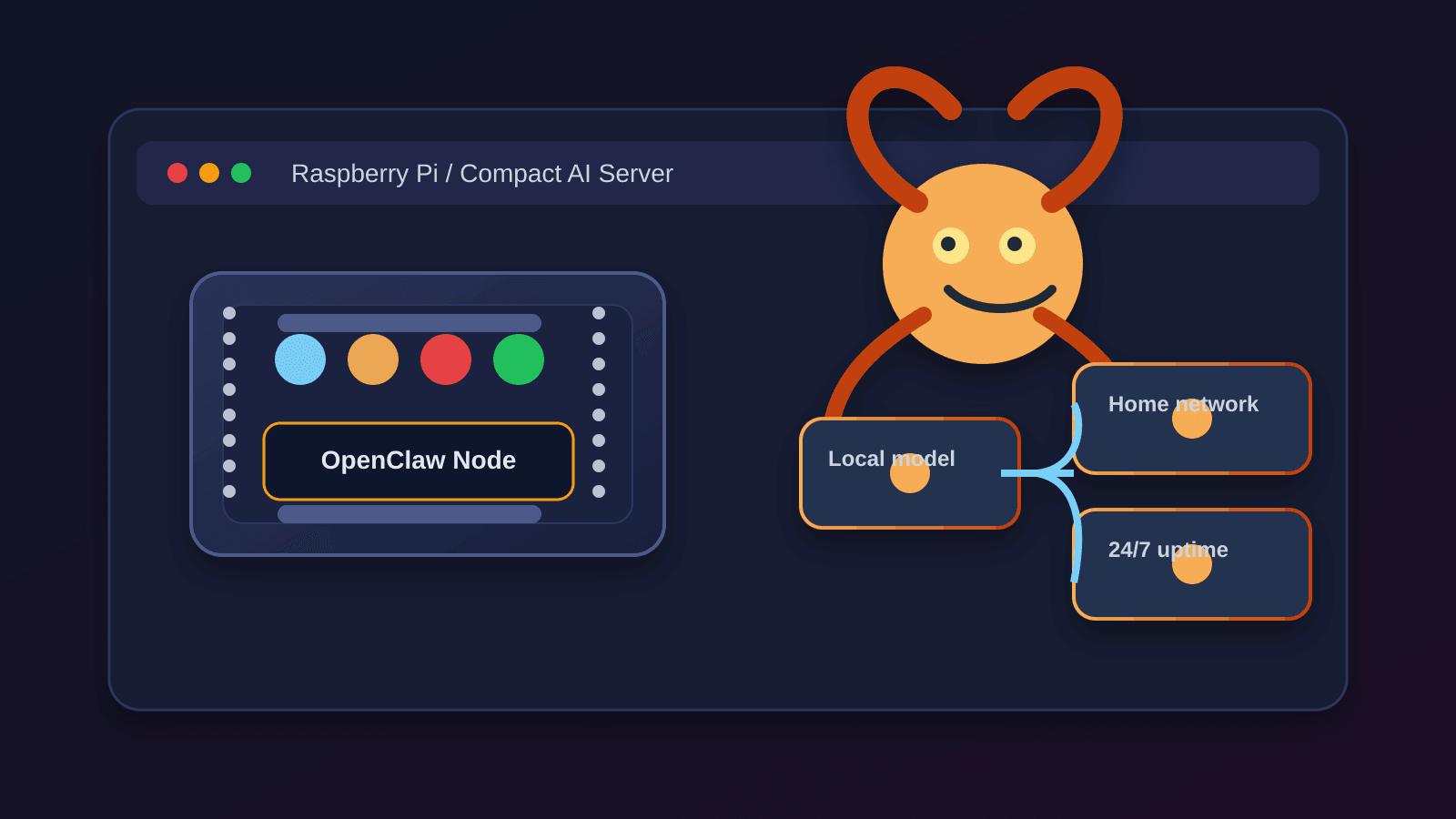
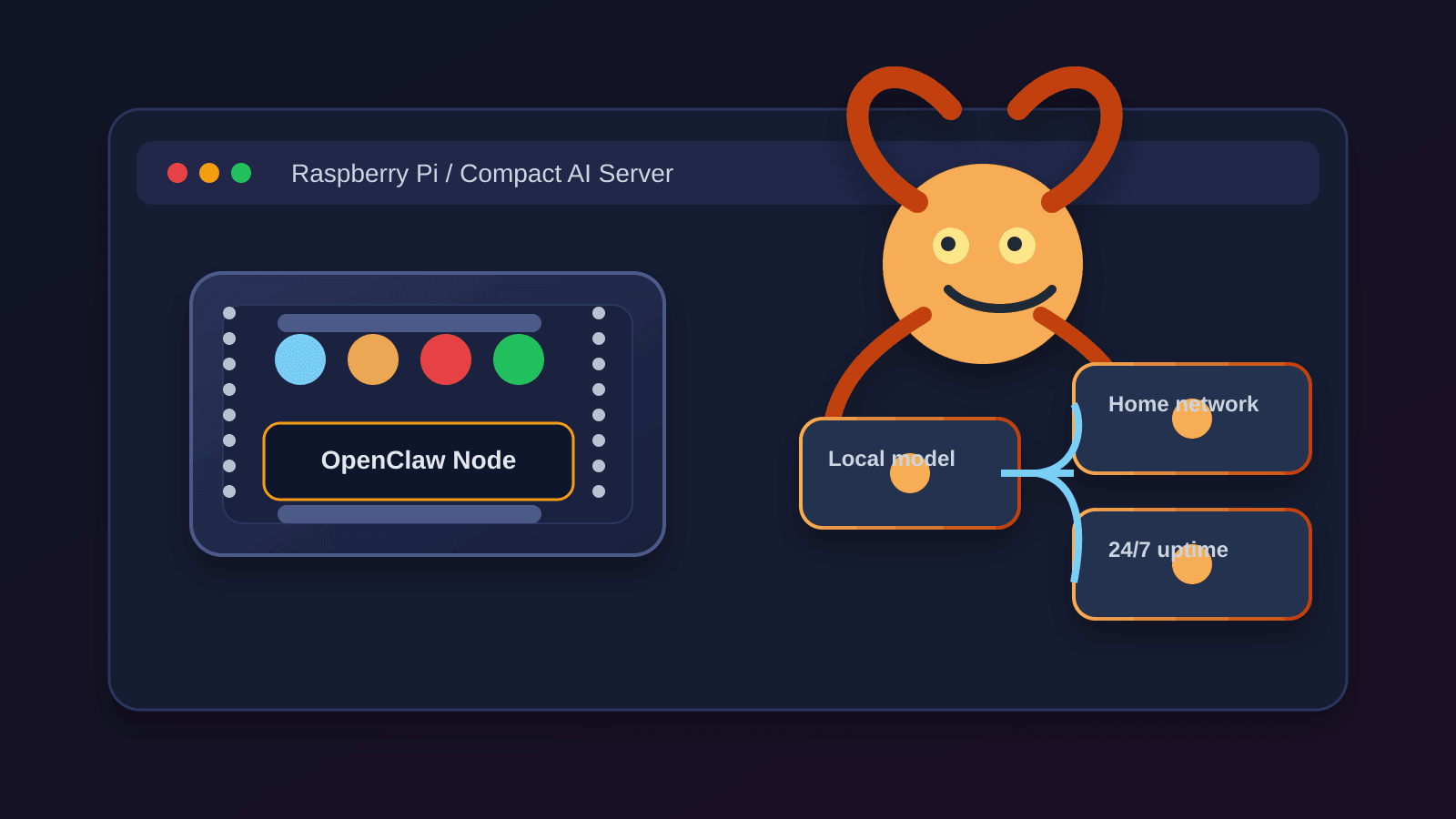
Looking to run your own AI assistant 24/7 without breaking the bank? This guide shows you how to build a fully functional OpenClaw AI server for just $50 using a Raspberry Pi. By following our step-by-step setup, you’ll have a private, energy‑efficient AI agent that handles home automation, personal reminders, and development tasks—all while keeping your data local.
Why a Raspberry Pi? Compared to cloud VPS services that cost $5–$20 per month, a one‑time $50 investment pays for itself in under a year. The Raspberry Pi 4 (2GB) consumes under 5 watts, runs silently, and fits anywhere in your home. OpenClaw, the open‑source AI agent platform, is perfectly suited for Raspberry Pi’s ARM architecture, giving you a complete AI‑assistant stack without monthly fees.
In this 2026 guide, we’ll cover everything from hardware shopping list to headless installation, cost analysis, performance tweaks, and real‑world use cases. Whether you’re a DIY enthusiast, a budget‑conscious developer, or a home‑automation hobbyist, you’ll learn how to turn a $50 Raspberry Pi into a 24/7 AI server.
Key Takeaways
- Build a $50 AI server using Raspberry Pi 4 (2GB) and OpenClaw—payback in under a year vs cloud VPS.
- Step‑by‑step headless installation gets you from zero to a working AI agent in 30 minutes.
- Hardware shopping list stays under $50 with exact part recommendations and budget alternatives.
- Performance tweaks for 2GB RAM systems: swap space, GPU memory reduction, and service optimization.
- Real‑world use cases: home automation with Home Assistant, personal Telegram bot, cron‑based automations.
- Troubleshooting guide covers out‑of‑memory errors, slow SD cards, WiFi drops, and ARM compatibility.
Table of Contents
- Why Build a $50 AI Server?
- Hardware Shopping List: Exactly What You Need for $50
- Step‑by‑Step Installation: From Zero to AI Agent in 30 Minutes
- Configuration for Limited Hardware
- Cost Analysis: $50 vs Cloud VPS (Break‑Even in 9 Months)
- Real‑World Use Cases: What Can You Actually Do?
- Troubleshooting Common Raspberry Pi Issues
- Advanced Optimizations for Power Users
- Frequently Asked Questions (FAQ)
- Conclusion
Why Build a $50 AI Server?
Before diving into the setup, let’s examine why a Raspberry Pi‑based AI server makes financial and practical sense in 2026.
The Cost Breakdown: Pi 4 (2GB) vs Pi 5 (4GB) vs Cloud VPS
| Hardware | Upfront Cost | Monthly Cost (electricity) | Break‑Even vs $5/month VPS |
|---|---|---|---|
| Raspberry Pi 4 (2GB) | $35 | $0.15 | 9 months |
| Raspberry Pi 5 (4GB) | $60 | $0.18 | 13 months |
| Cloud VPS (2GB, 1 vCPU) | $0 | $5–$20 | — |
The Raspberry Pi 4 (2GB) is the clear budget winner. At $35 (often less on sale), plus a $5 microSD card and $10 power supply, you stay under $50 total. Electricity adds about $0.15/month at average US rates—a fraction of even the cheapest VPS. Over a year, the Pi 4 saves you $45–$235 compared to cloud options.
Privacy Advantages: Your Data Stays Local
OpenClaw processes messages, file reads, and automation triggers on‑device. No personal data leaves your network unless you explicitly connect external channels (like Telegram or Discord). For home‑automation tasks—controlling lights, checking security cameras, or managing calendars—local processing eliminates cloud‑service privacy concerns.
Energy Efficiency: Under 5 Watts, 24/7 Operation
A Raspberry Pi 4 idles at about 3–4 watts under typical OpenClaw loads. Even running 24/7, that’s roughly 3 kilowatt‑hours per month—costing less than $0.50 in most regions. Compare that to a desktop PC (100–300W) or a cloud data‑center’s indirect energy footprint. The Pi’s low power draw also means no heat issues and silent operation.
Perfect for Home Automation and Personal AI
OpenClaw’s skill ecosystem includes native Home Assistant integration, weather checks, calendar reading, and custom cron jobs. Running it on a Pi gives you a always‑on hub that can:
- Send you morning briefings via Telegram
- Monitor RSS feeds and notify you of updates
- Control smart plugs and lights via Home Assistant
- Run periodic health‑checks on your network
- Serve as a development sandbox for new skills
Hardware Shopping List: Exactly What You Need for $50
You don’t need the latest Raspberry Pi 5 to run OpenClaw. The Pi 4 (2GB) delivers plenty of performance for typical agent workloads. Here’s the exact shopping list to stay under $50.
Raspberry Pi 4 (2GB) – The Budget King
- Model: Raspberry Pi 4 Model B (2GB RAM)
- Price: $35 (often $30 on sale)
- Why 2GB is enough: OpenClaw with Node.js uses about 400–600MB RAM at idle. The remaining memory comfortably handles a few concurrent skills, a swap file, and the OS.
Note: The 1GB version isn’t recommended—Node.js module installation can hit memory limits during setup. The 4GB or 8GB models are overkill unless you plan to run additional heavy services (like a local LLM via Ollama).
MicroSD Card vs USB SSD: Performance vs Cost
- MicroSD Card (32GB Class 10/A1): $5–$8. Adequate for the OS and OpenClaw installation. Write speeds are slower but acceptable for a read‑heavy workload.
- USB SSD (128GB): $20–$30. Dramatically faster boot and skill‑loading times. If you can stretch the budget by $15–$20, this upgrade is worth it for long‑term responsiveness.
For a true $50 build, a 32GB microSD card is fine. We’ll configure a swap file to reduce wear.
Power Supply, Case, and Cooling on a Budget
- Official Raspberry Pi 4 USB‑C Power Supply (5.1V/3A): $10. A reliable power source prevents undervoltage warnings.
- Basic Plastic Case: $5. Keeps dust off and provides some airflow.
- Heat Sinks (optional): $2. The Pi 4 can throttle under sustained load; small aluminum heat sinks help maintain performance.
Total so far: $35 (Pi) + $8 (SD card) + $10 (power) + $5 (case) = $58. Wait—that’s slightly over $50. To hit our target, drop the case (use a stand‑off or bare board) and skip heat sinks. That brings us to $53. Look for a Pi 4 bundle that includes a power supply and SD card for around $45–$50.
Optional Extras: Ethernet Cable, HDMI Adapter
- Ethernet Cable: Use a wired connection for reliability. WiFi works but can drop under long‑term operation.
- Micro‑HDMI to HDMI Adapter: $5 if you need to attach a monitor during initial setup (headless setup avoids this).
Step‑by‑Step Installation: From Zero to AI Agent in 30 Minutes
Follow these steps to flash the OS, configure headless access, install OpenClaw, and connect your first channel.
1. Flashing Raspberry Pi OS Lite (64‑bit)
- Download Raspberry Pi Imager from raspberrypi.com/software.
- Insert your microSD card into your computer.
- In Imager, select “Raspberry Pi OS Lite (64‑bit)”—the minimal, console‑only version.
- Click the settings icon (gear) to enable SSH and set a password.
- Set a username (e.g.,
pi) and password. - Check “Enable SSH” and “Use password authentication.”
- Set a username (e.g.,
- Write the image to the SD card.
2. Headless Setup: SSH, Network Configuration
- Insert the SD card into the Pi, connect Ethernet and power.
- Find the Pi’s IP address via your router’s admin page or by scanning with
nmap(nmap -sn 192.168.1.0/24). - SSH into the Pi:
Use the password you set in Imager.ssh pi@<Pi-IP-address> - Update the system:
sudo apt update && sudo apt upgrade -y
3. Installing Node.js and OpenClaw via Install Script
OpenClaw requires Node.js 18 or later. The easiest method is using the official installation script.
- Install Node.js 22 (LTS) via NodeSource:
curl -fsSL https://deb.nodesource.com/setup_22.x | sudo -E bash - sudo apt install -y nodejs - Verify installation:
node --version # Should show v22.x npm --version # Should show 10.x - Install OpenClaw globally:
npm install -g openclaw - Run the onboarding wizard:
Follow the prompts to set your workspace directory, API keys, and connect your first channel (Telegram, Discord, etc.).openclaw onboard
4. Running Onboarding and Connecting Your First Channel
The openclaw onboard wizard will ask for:
- Workspace path: Use the default (
~/.openclaw/workspace). - API keys: You’ll need an OpenAI, Anthropic, or Fireworks API key for LLM access. If you’re on a tight budget, Fireworks offers generous free tiers.
- Channel setup: Pick Telegram or Discord for initial testing. The wizard provides a step‑by‑step linking process.
Once onboarding completes, OpenClaw starts as a background service. Verify it’s running:
openclaw status
Configuration for Limited Hardware
The Pi 4 (2GB) has enough resources, but a few tweaks ensure smooth operation.
Swap Space Setup for 2GB RAM Systems
Create a 2GB swap file to prevent out‑of‑memory crashes:
sudo fallocate -l 2G /swapfile
sudo chmod 600 /swapfile
sudo mkswap /swapfile
sudo swapon /swapfile
Make the swap permanent by adding this line to /etc/fstab:
/swapfile none swap sw 0 0
Disabling Unnecessary Services to Free Memory
Raspberry Pi OS Lite already runs few services, but you can disable bluetooth and avahi‑daemon if not needed:
sudo systemctl disable bluetooth
sudo systemctl disable avahi-daemon
Reboot after changes.
GPU Memory Reduction and Performance Tweaks
Reduce the GPU memory split to 16MB (since you’re running headless):
- Edit
/boot/config.txt:sudo nano /boot/config.txt - Find the line
gpu_mem=and change it to:gpu_mem=16 - Add these lines to prevent CPU throttling:
(These are safe overclocks that improve responsiveness.)arm_boost=1 over_voltage=2
Setting Up Module Compile Cache for Faster CLI
Node.js native modules compile on‑install. Speed up future npm install commands by adding a compile cache:
npm config set cache ~/.npm-cache --global
For more advanced Raspberry Pi tuning, see our Raspberry Pi performance tuning guide.
Cost Analysis: $50 vs Cloud VPS (Break‑Even in 9 Months)
Let’s compare the total cost of ownership over 1, 2, and 5 years.
| Cost Component | Raspberry Pi 4 (2GB) | Cloud VPS (2GB, 1 vCPU) |
|---|---|---|
| Hardware | $50 | $0 |
| Electricity (per month) | $0.15 | $0 (included) |
| Monthly fee | $0 | $5–$20 |
| Year 1 total | $51.80 | $60–$240 |
| Year 2 total | $53.60 | $120–$480 |
| Year 5 total | $59.00 | $300–$1,200 |
Break‑even point: At a $5/month VPS, the Pi pays for itself in about 9 months. At $10/month, break‑even drops to 5 months. After that, every month of Pi operation saves you the equivalent VPS fee.
When a Cloud VPS Still Makes Sense
- Higher reliability: VPS providers offer 99.9% uptime SLAs; a home Pi depends on your internet and power stability.
- More CPU/RAM: If you need 4+ GB RAM or multiple CPU cores, a VPS may be more cost‑effective.
- Dynamic scaling: Cloud VPS can be resized on demand; hardware is fixed.
For most personal AI‑assistant use cases, the Pi’s reliability is sufficient. Pair it with a UPS for power‑outage protection.
Real‑World Use Cases: What Can You Actually Do?
OpenClaw on Raspberry Pi isn’t just a demo—it’s a practical 24/7 assistant. Here are real tasks you can automate.
Home Automation with OpenClaw + Home Assistant
- Install the Home Assistant skill:
openclaw skills install home-assistant - Configure your Home Assistant URL and access token.
- Create automations like:
- “Turn off all lights at midnight”
- “Notify me when the front‑door camera detects motion”
- “Adjust thermostat based on weather forecast”
Personal AI Assistant for Telegram/WhatsApp
Connect OpenClaw to Telegram via the onboarding wizard. Then you can:
- Ask for weather updates, news summaries, or calendar events
- Set reminders (“remind me to water the plants every Tuesday”)
- Run custom skills (e.g., “check my GitHub notifications”)
Development Sandbox for Testing Skills
Use the Pi as a low‑risk environment to develop and test new OpenClaw skills. The ARM64 architecture ensures compatibility with production Raspberry Pi deployments.
Cron‑Based Automations (Morning Briefings, Health Checks)
Schedule regular tasks with OpenClaw’s cron support:
- Daily 8 AM briefing: Compile weather, calendar events, and top news headlines into a Telegram message.
- Hourly health check: Ping your website and alert you if it’s down.
- Weekly backup reminder: Prompt you to back up important files.
Troubleshooting Common Raspberry Pi Issues
Even with careful setup, you might encounter a few Pi‑specific hurdles.
Out‑of‑Memory Errors and How to Fix Them
Symptom: OpenClaw crashes with “JavaScript heap out of memory.”
Solution:
- Increase Node.js heap limit by setting
NODE_OPTIONS=--max-old-space-size=1024in the OpenClaw service environment. - Ensure swap is active (
free -hshould show swap usage). - Limit concurrent skills: run only essential skills on the Pi.
Slow Performance: SD Card vs SSD, CPU Throttling
Symptom: Commands take seconds to complete.
Diagnose:
- Check SD card speed:
sudo dd if=/dev/zero of=/tmp/test bs=1M count=100 - Monitor CPU temperature:
vcgencmd measure_temp. Above 80°C triggers throttling.
Fix:
- Migrate to a USB SSD if possible.
- Improve cooling: add a heat sink or small fan.
- Reduce CPU load by disabling unnecessary background processes.
Network Connectivity: WiFi Drops, Ethernet Tips
Symptom: OpenClaw loses connection to channels.
Recommendation: Use Ethernet instead of WiFi for 24/7 operation. If you must use WiFi:
- Set a static IP for the Pi.
- Disable WiFi power‑saving: add
wireless-power offto/etc/network/interfaces.
ARM64 Compatibility: Skills with Binary Dependencies
Some skills rely on native npm modules that must compile for ARM64. If installation fails:
- Ensure
gcc,g++,make, andpython3are installed. - Check the skill’s documentation for ARM‑specific instructions.
Advanced Optimizations for Power Users
Once you have the basics running, these tweaks can improve performance and capability.
Overclocking (Safe Limits for Pi 4)
Edit /boot/config.txt and add:
over_voltage=6
arm_freq=1800
gpu_freq=600
This pushes the CPU to 1.8 GHz (up from 1.5 GHz) with a slight voltage increase. Monitor temperature and stability.
Using USB SSD for Faster Boot and Skill Loading
If you opted for a USB SSD, move the root filesystem to it:
- Clone the SD card to the SSD using
ddorrsync. - Change
/boot/cmdline.txtto point to the SSD partition. - Reboot.
Boot times drop from ~30 seconds to ~10 seconds, and skill loading speeds improve noticeably.
Tailscale for Secure Remote Access
Install Tailscale to access your OpenClaw Pi from anywhere without opening firewall ports:
curl -fsSL https://tailscale.com/install.sh | sh
sudo tailscale up
Then connect via the Tailscale IP address.
Running Multiple Agents on a Single Pi
OpenClaw supports multi‑agent configurations. To run two independent agents (e.g., one for home automation, one for personal tasks):
- Create separate workspace directories.
- Launch each agent with a different
OPENCLAW_WORKSPACEenvironment variable. - Use different API keys or model limits to keep costs separate.
The Pi 4 (2GB) can handle 2–3 lightweight agents concurrently.
Frequently Asked Questions (FAQ)
Can OpenClaw Run on Raspberry Pi Zero?
No, OpenClaw cannot run on Raspberry Pi Zero models due to hardware limitations. The original Pi Zero’s single‑core CPU and 512MB RAM are insufficient for Node.js and modern npm dependencies. Even the Pi Zero 2 (quad‑core, but still only 512MB RAM) struggles with memory during module compilation and agent operation. For reliable 24/7 operation, we recommend Raspberry Pi 3 or newer with at least 1GB RAM, though 2GB is the sweet spot for OpenClaw.
How Many Concurrent Agents Can a Pi 4 Handle?
A Pi 4 (2GB) can run 2–3 lightweight OpenClaw agents comfortably. Each agent uses about 400–600MB RAM at idle; add swap space to prevent OOM errors. For heavier workloads (local LLM inference, multiple skills), limit to one agent or upgrade to a Pi 5 (4GB/8GB).
What’s the Power Consumption? (Measured Watts)
Measured with a USB‑C power meter, a Raspberry Pi 4 running OpenClaw draws 3–4 watts at idle, 4–5 watts under typical load (periodic cron jobs, occasional skill execution), and peaks at 6–7 watts during intensive tasks like npm installs or heavy computation. These measurements assume a quality power supply and no overclocking. For comparison, a desktop PC consumes 100–300 watts, making the Pi 50–100x more energy‑efficient.
Can I Use It as a 24/7 Server? (Yes, Reliability Tips)
Yes, you can use a Raspberry Pi as a 24/7 OpenClaw server with proper setup. Ensure stable power with a quality USB‑C power supply and consider a small UPS for outages. Use wired Ethernet for consistent connectivity, and keep ambient temperature below 35°C with adequate cooling (heat sinks or a fan). Regularly update the OS with sudo apt update && sudo apt upgrade weekly, and monitor logs for errors. With these precautions, the Pi can run reliably for months without intervention.
Is Raspberry Pi 5 Worth the Extra $30?
For OpenClaw alone, the Pi 5’s extra performance isn’t necessary. However, if you plan to also run a local LLM (like Llama 3.1 8B via Ollama) alongside OpenClaw, the Pi 5’s faster CPU and more RAM make a noticeable difference.
What AI Models Can I Run Locally on Pi? (Ollama Options)
Via Ollama, the Pi 4 (2GB) can run small models like TinyLlama (1.1B) or Phi‑2 (2.7B). The Pi 5 (4GB) can handle Llama 3.1 8B (quantized). OpenClaw can call Ollama as a local model endpoint, giving you fully private AI interactions.
How to Backup and Restore Your OpenClaw Setup?
- Backup your workspace:
tar czf openclaw-backup.tar.gz ~/.openclaw/workspace - Backup SD card image using Raspberry Pi Imager’s “Read” function.
- To restore, extract the tarball to the new Pi’s workspace directory and re‑run
openclaw onboardto reconnect channels.
Conclusion
Building a $50 AI server with OpenClaw on Raspberry Pi is not only feasible but financially smart. For the price of a few months of cloud VPS fees, you get a permanent, private, energy‑efficient assistant that can handle home automation, personal reminders, and development tasks.
Check out our OpenClaw skills directory to explore more automation possibilities.
Follow the hardware shopping list to stay under budget, use the step‑by‑step headless installation to get running in 30 minutes, and apply the performance tweaks for smooth 24/7 operation. With the cost analysis showing break‑even in under a year, there’s little reason not to turn that spare Pi into a full‑time AI agent.
Ready to start? Grab a Raspberry Pi 4 (2GB), flash the OS, and run npm install -g openclaw. Your $50 AI server awaits.


Comments
Loading comments…